




This post is a follow up to the ‘What Software for 3d Printing’ posting.
As I mentioned, I’ve used Wings3d for 3d printing and I thought I’d outline my approach and techniques for anyone going down a similar path. While the former thread was specifically about modeling for 3d printing, I’m going to veer off-path and illustrate how I’ve used Wings to design a card model of Khufu’s Solar Barge. (Whether or not I’ve been successful is yet to be seen!). This first post will introduce Wings3d and illustrate how to import line drawings into the program to guide your modeling activities. Future posts will illustrate specific steps and Wings commands used in the modeling process.
My own history with Wings dates back to its very beginning. There was a short lived, commercial modeling program named ‘Nendo’ where I learned basic subdivision modeling. My goal at the time was to design card models with it by ‘unfolding’ a virtual 3d model. Nendo was not a commercial success but its approach was so user friendly that when it faded away an open source developer based his own program on it and made it available as Wings3d. Wings has grown since then and has maintained a consistent though slow development—which continues to this day. While my goal of designing card models has taken a back seat (and Wings does lack some essential functions for this), I found that my Wings models could be imported into a sailing simulator called ‘Virtual Sailor’. I contributed a number of models for that program but more recently have focused on creating ships (and planes) for the open-source flight simulator ‘Flightgear’. Only recently have I come to creating models for 3d printing for accessories for ship models. However, as this thread progresses I’ll be returning to the concept of designing card models. I’ve chosen the ancient Egyptian vessel known as ‘Khufu’s Solar Barge’ as my subject because its shapes are fairly basic yet challenging.
Whether the desired outcome is a 3d printed part or a design for a card model, the Wings modeling skills are the same. The primary difference will be the final exporting of the model. For 3d printing on either an FDM or a resin printer Wings will export *.stl files which can be fed into a ‘slicer’ and thus to the actual 3d printer. However, for my my purpose I’ll export the final model to *.obj format and then open the model in Blender in order to experiment with ‘unfolding’ the model into flat patterns which can be printed, folded and glued together to create a physical model. While there are a number of high-end modeling programs that do provide an unfold function they tend to be out of my price range or simply won’t work with my computer operating system. Blender does have a fairly recent 3rd party extension which looks like it may (heavy emphasis on MAY) work. So why not work directly in Blender, I hear you ask. Blender is a beast with a steep learning curve. Modeling in Wings is far, far simpler and… I already know how it works.
First, decide what you want to accomplish. 3D modeling can be a complex process and most modeling applications are going to present many more options than you really need to produce an *.stl file for printing. If your goal is to 3d print, there are two very basic attributes you must be aware of:
1) Your model must be water-tight, e.g., shapes must be complete with no holes to the inside.
2) Your model will be composed of triangles. While you may not necessarily triangulate the model yourself, somewhere along the process it will happen.
Even though Wings3d predates 3d printing, both of these factors are inherently built into the program.
Wings is primarily a ‘Subdivision’ or ‘Box’ modeler. Subdivision or Box modeling is like kneading a loaf of bread dough or shaping a lump of clay. ‘Parametric’ modeling is more like a CAD program where you define a shape through assigning numeric values which are fed into mathematical formulae. It’s two fundamentally different ways of thinking about modeling shapes and each has its benefits and challenges. Of course, modern modeling programs (Wings, included) blur and incorporate aspects of both methodologies.
You will generally begin your workflow in Wings with a box or other primitive shape and then subdivide the various faces, extruding, moving, rotating them as needed to achieve the desired shape. Wings’ internal format (the ‘Winged Edge Data Structure’) is, by its very nature, a closed, water-tight shape which is good for 3d printing. The program does not contain a lot of the fancy visualization functions that other 3d graphic programs promote. There is no animation, no fancy rendering engine, and limited ability to UV map graphic images onto the model faces. But that’s OK. These functions serve no purpose when designing for 3d printing. In fact, they can prove to be quite distracting! Consequently, Wings is ideally suited for creating *.stl files. Wings encompasses the early open-source mantra of ‘Do one thing and do it well’. It is a stand alone program. It runs entirely on your local machine and does not need internet access or any type of subscription or licensing to operate. Of course, the flip side to that freedom is that there is no official support. There is a user forum where a few long term members can offer suggestions and work-arounds but like most small scale open-source projects you usually have to figure things out on your own when you encounter challenges. The best process for learning Wings is to iterate, iterate, iterate until you succeed.
WINGS3d
I can’t provide much advice for installing Wings3d on your computer. The last time I had a Windows computer you simply needed to download and run the provided executable. That was long ago. I’ve been a Linux user for so long now that I have no idea how you install 3rd party programs on Windows and deal with all the ‘security’ features that come with it. All I can say is that I’ve never had a problem installing Wings and suggest you consult the forum. If you do have problems with the installation, feel free to post in this thread, too. Maybe someone will have the solution. The forum is full of helpful folk.
On a Linux system you can either consult your distribution’s package management system or install the Wings flatpack linked to on the Wings3d.com site.
GUIDED TOUR OF WINGS3D
Using the Mouse
Wings is very mouse oriented—and very 3 button mouse oriented at that. Typically, the left mouse key is used for selecting an item in the modeling window. The middle mouse button (or scroll wheel) is used to adjust the view. Press the middle button once to begin rotating your view point around the model; click the left mouse button to cease rotating the view. Use the scroll wheel to zoom the view towards or away from the model. (Note that you can adjust the center point around which the view rotates by selecting a vertex, edge, face or object and pressing the A key.) The right mouse button almost always will open a context sensitive command menu—either allowing you to create a new object of some type or initiate some type of operation on a selection.
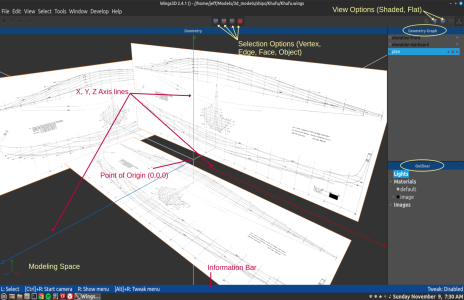
The drop down menus along the top of the window are fairly standard. When in doubt as to what a menu command does, hover the cursor over the command and check out the information bar at the bottom of the screen. However, the four icons in the center of the second row from the top might require some explanation. From left to right these icons let the user select whether they are interacting with vertices, edges, faces or entire objects. By default, Wings will allow you to select any of these elements simply by hovering the cursor over the element and right clicking. Note, however, that once something has been selected, only that type of element can be selected. For example, once you have selected one vertex, you can only select other vertices until you have performed an action on them or released them by pressing the SPACE key. Personally, I prefer to tell Wings exactly what I intend to select by clicking on one of the aforementioned icons. By doing that, only those types of elements are eligible to be selected. In addition to the icons you can also enforce this restriction by pressing the following keys: V (Vertices), E (Edges), F (Faces) and B (oBjects). You can also do this to change the elements already selected. For example, if you select a face, but then decide that you really need to select all the vertices or edges that make up the face, click the associated icon or key.
Once something has been selected, you typically access a context specific menu by clicking the right mouse button. This will provide you with access to all the commands that are feasible for the selected elements. This is where the real complexity of Wings is hidden away. New users often dismiss Wings because of the simplicity of the initial interface—especially when compared to something like Blender. However, that visual simplicity is not indicative of Wings capabilities. Wings does not clutter the interface with icons for a ton of commands—most of which are not meaningful for the selected element. Keep in mind that Wings3d is mouse and menu driven. There are two other features to keep in mind: 1) most commands can be initiated with an assigned hot key; 2) Many times different types of elements have the same command but the command behaves differently depending on the type of element. For example, vertices, edges and faces can all be extruded, but the results are vastly different. One of the hot-key combinations you’ll want to memorize is Cntl+Alt+Z. Like most modern programs, Alt+Z will undo the last command. However, unlike most programs, pressing Alt+Z a second time will undo the last undo thereby actually redoing the actual command! To undo a sequence of commands you need to press Cntl+Alt+Z.
Some of the most used commands consist of manipulating faces by moving, scaling and extruding them. Likewise, it’s important to understand how to select edges, move and scale them as well as how to cut face edges into parts and connect the new vertices thus dividing a face into two or more smaller faces. And finally, selecting single or multiple vertices and manipulate them.
Two other useful commands to master are the ‘Loop Cut’—essentially selecting a ring of edges around an object and cutting the object into two along that ring, and the Mirror command—selecting an object face and creating a conjoined twin of the object.
Many of the context sensitive menus have sub-menus which will appear once you’ve selected a command. Other commands may have options which are accessible by clicking on the little gear icon beside the command name on the menu. Still others may allow numeric input by pressing the TAB key after selecting the command from the menu. Explore the interface. The better you understand the interface, the less frustrating the act of modeling becomes.
Modeling Space
The main window in Wings3d represents your modeling space in three dimensions labeled X, Y and Z. By default, the vertical axis is the Y axis, the X axis is left to right as you view the screen and the Z axis is towards or away from your face. The center point where all three axes meet is known as the ‘origin point’ and represents the exact center of the modeling space. Note that different model formats may label these axes differently. Therefore, if you export your model and import it into a different program you may notice that the model has been rotated or flipped around. This is often true of 3d slicer programs. Not to worry, though. Most of these programs provide an easy way to rotate the model to a more appropriate direction.
Use your mouse to rotate and zoom around in the Wings modeling space. But there are a couple of default camera ‘modes’ which define how you control the view in Wings. The mode can be changed by going to Edit→Preferences→Camera settings. I use the Nendo mode since this is what I’ve used for years. Another option is to use the Blender scheme—which is probably a better fit if you are already familiar with Blender’s interface.
With my mode setting I click the middle mouse button to begin pivoting the camera around the origin point (this is the 0,0,0 point, where all three axes meet). I use the mouse scroll wheel to zoom in or away from the origin point. It’s important to know that you can change the point that the camera uses as the pivot point by selecting a vertex, edge, face or object and then pressing the ‘A’ button (‘A’ as in aim). From then on the camera will use the center of whatever you selected as the pivot point. Press the ‘R’ key to reset to the view to pivot on the origin point at 0,0,0. Note that this only affects the aiming point of the view, not the origin of the 3d modeling space which will remain at 0,0,0.
Dimensions in the Modeling Space.
The Wings3d modeling space is virtual. There’s no such thing as a measured inch, foot, meter or kilometer. Space is measured in arbitrary dimensional units. One unit can equal one millimeter, one inch or one foot. It doesn’t really matter inside Wings. Where it does matter is when you export your Wings model to an *.stl model. By default, Wings’ *.stl export function will let you assign one Wings unit to a millimeter, centimeter or inch. But you also have the option to scale the model when exporting to *.stl. I would recommend using whatever measurement you like when modeling. If you’re more comfortable modeling at 1:1 scale, then go for it. Call each unit a foot or a meter or whatever. Scaling a virtual model is very easy and there are a number of different ways of doing it on a number of occasions. I usually don’t worry too much about the actual size until very near the end of the modeling process—or unless I have to have two parts fit together. Take care, however, to ensure that your model and all its parts have the correct proportions. As a matter of fact, if you intend to print on a 3d printer, most slicing programs will also allow you to scale the model before sending it to the printer.
When exact measurements are required there are two ways to achieve them in Wings. The first is through the set of commands accessible from the ‘Absolute Commands’ command on the context sensitive menu (i.e., right clicking on the selected object). The second method is through the use of a ‘bounding box’ accessible from the Tools menu bar. Essentially, both of these methods allow you to enter exact dimensional units for moving and scaling objects. Suffice to say that exact measurement in Wings is not obvious or straightforward, but it is possible. We will return to dimensions in the future.
Modeling Space Views
There are three separate modes of viewing models in Wings.
The default is what I refer to as ‘flat’ or ‘solid’. It is, as the name suggests, viewing the visible objects as if they were solid and you cannot see through them. Faces are rendered as flat surfaces with no smoothing applied.
The second viewing mode is ‘Shaded’ (toggled on and off with the ‘Tab’ key). In this view, adjacent faces where the angle between them is less than a certain degree (and I can’t find the value) are rendered as a single, curved surface. Note that this is just an optical trick. Changing the view mode makes no changes to the actual geometry of the model. Edges can be exempted from this smooth rendering by being defined as a ‘hard’ edge. (Select the edge, right click and select ‘Hardness’ and choose either ‘Hard’ or ‘Soft’.)
The third view option is ‘Wire Frame’ (toggled on and off with the ‘W’ key). In this view, edges are rendered as distinct lines. Wire Frame view displays the model as a mesh of edges. Normally, there will be no solidity to the object—you will be able to look through the object and see all the edges of the object, both those facing you and those on the back side. However, Wire Frame view can be used with ‘Shaded’ or ‘Solid’ where the edge lines overlay the normal Shaded view. In this situation, you will not be able to see the edges on the back side but you will be able to see those edges facing you.
Play around with the view options. Observing the various options is a lot more straight forward than trying to understand the descriptions of them.
Additional View Options
There are a few other helpful windows that I recommend you make visible as you work. These can be enabled from the ‘Window’ menu along the top. The first of these is the ‘Geometry Graph’. The Geometry Graph shows a list of all the 3d objects in your modeling space. By right clicking on these objects in the Graph you can name/rename, select, hide, delete or set the view option for the particular object. Very handy. You can also create folders and assign parts to those folder. This is helpful when dealing with models with many parts and you want to simplify the Geometry Graph parts listing.
The second window to enable is the ‘Outliner’. The Outliner shows the various defined ‘Materials’ and imported images incorporated into the model. When defining a Material you are able to assign a color (or even an imported image) to the material. Once a Material is assign to a face, the face will then be rendered in that color in the modeling space. Materials don’t have much relevance when modeling for 3d printing. However, for my purposes of designing a card model they take on a whole lot of importance as will be seen later.
When you first enable the Outliner and Geometry Graph windows they may appear as separate windows on your monitor. If you want to avoid one window obscuring another you can dock these sub-windows to the sides of the modeling space by simply dragging them to the location of your choosing in the modeling space.
Importing Plans
In the early years of Wings3d development, importing a drawing to base your model on was a real pain. You had to create a flat object, import your drawing image, UVMap the image to the object and then place the object where you wanted it. Luckily, the process is much easier these days.
Simply left click on a vacant area in the modeling space and select the ‘Image Plane’ command. This will open a window to allow you to select an image file containing your plan. Upon selecting an image a flat object is inserted into your modeling space with the image applied to it. Note that if you select the gear icon of the Image Plane command, once you’ve selected your image file you will be presented with a number of options on how to place the image plane. Once you’ve created the image plane now is a good time to click on it in the Geometry Graph and rename it to something recognizable—‘side view’, ‘top view’, etc.
Typically, you’ll go through this process three times. Once for the side, top and front views of your plan. (Or, in many cases if your drawing contains all three view you can simply duplicate the first image plane for each additional view—right click the first image plane and choose the ‘Duplicate’ command and then move/rotate the new plane appropriately.) Once your views are imported you will need to position them so that they are all aligned with the origin point of your modeling space. I typically position the plans so that the bottom of the object you’re modeling will lie along the horizontal X axis while the center will be bisected by the vertical Y axis.
I’d recommend scaling the the plans so that they are close to what you want the finished model to be. For example, I’m designing a 1/72 scale model of Khufu’s Solar Barge. The actual ship is 43.4 meters long (= 4,340 centimeters) which comes out to (4,340 / 72 =) 60.2777 centimeters in length. In Wings, I want one measurement unit to equal one centimeter. So I want to scale the image plane so that the image of the ship is close to 60 units long. I’ll save the exact measuring until later in the modeling process.
Whew! That’s probably enough for now.
As I mentioned, I’ve used Wings3d for 3d printing and I thought I’d outline my approach and techniques for anyone going down a similar path. While the former thread was specifically about modeling for 3d printing, I’m going to veer off-path and illustrate how I’ve used Wings to design a card model of Khufu’s Solar Barge. (Whether or not I’ve been successful is yet to be seen!). This first post will introduce Wings3d and illustrate how to import line drawings into the program to guide your modeling activities. Future posts will illustrate specific steps and Wings commands used in the modeling process.
My own history with Wings dates back to its very beginning. There was a short lived, commercial modeling program named ‘Nendo’ where I learned basic subdivision modeling. My goal at the time was to design card models with it by ‘unfolding’ a virtual 3d model. Nendo was not a commercial success but its approach was so user friendly that when it faded away an open source developer based his own program on it and made it available as Wings3d. Wings has grown since then and has maintained a consistent though slow development—which continues to this day. While my goal of designing card models has taken a back seat (and Wings does lack some essential functions for this), I found that my Wings models could be imported into a sailing simulator called ‘Virtual Sailor’. I contributed a number of models for that program but more recently have focused on creating ships (and planes) for the open-source flight simulator ‘Flightgear’. Only recently have I come to creating models for 3d printing for accessories for ship models. However, as this thread progresses I’ll be returning to the concept of designing card models. I’ve chosen the ancient Egyptian vessel known as ‘Khufu’s Solar Barge’ as my subject because its shapes are fairly basic yet challenging.
Whether the desired outcome is a 3d printed part or a design for a card model, the Wings modeling skills are the same. The primary difference will be the final exporting of the model. For 3d printing on either an FDM or a resin printer Wings will export *.stl files which can be fed into a ‘slicer’ and thus to the actual 3d printer. However, for my my purpose I’ll export the final model to *.obj format and then open the model in Blender in order to experiment with ‘unfolding’ the model into flat patterns which can be printed, folded and glued together to create a physical model. While there are a number of high-end modeling programs that do provide an unfold function they tend to be out of my price range or simply won’t work with my computer operating system. Blender does have a fairly recent 3rd party extension which looks like it may (heavy emphasis on MAY) work. So why not work directly in Blender, I hear you ask. Blender is a beast with a steep learning curve. Modeling in Wings is far, far simpler and… I already know how it works.
First, decide what you want to accomplish. 3D modeling can be a complex process and most modeling applications are going to present many more options than you really need to produce an *.stl file for printing. If your goal is to 3d print, there are two very basic attributes you must be aware of:
1) Your model must be water-tight, e.g., shapes must be complete with no holes to the inside.
2) Your model will be composed of triangles. While you may not necessarily triangulate the model yourself, somewhere along the process it will happen.
Even though Wings3d predates 3d printing, both of these factors are inherently built into the program.
Wings is primarily a ‘Subdivision’ or ‘Box’ modeler. Subdivision or Box modeling is like kneading a loaf of bread dough or shaping a lump of clay. ‘Parametric’ modeling is more like a CAD program where you define a shape through assigning numeric values which are fed into mathematical formulae. It’s two fundamentally different ways of thinking about modeling shapes and each has its benefits and challenges. Of course, modern modeling programs (Wings, included) blur and incorporate aspects of both methodologies.
You will generally begin your workflow in Wings with a box or other primitive shape and then subdivide the various faces, extruding, moving, rotating them as needed to achieve the desired shape. Wings’ internal format (the ‘Winged Edge Data Structure’) is, by its very nature, a closed, water-tight shape which is good for 3d printing. The program does not contain a lot of the fancy visualization functions that other 3d graphic programs promote. There is no animation, no fancy rendering engine, and limited ability to UV map graphic images onto the model faces. But that’s OK. These functions serve no purpose when designing for 3d printing. In fact, they can prove to be quite distracting! Consequently, Wings is ideally suited for creating *.stl files. Wings encompasses the early open-source mantra of ‘Do one thing and do it well’. It is a stand alone program. It runs entirely on your local machine and does not need internet access or any type of subscription or licensing to operate. Of course, the flip side to that freedom is that there is no official support. There is a user forum where a few long term members can offer suggestions and work-arounds but like most small scale open-source projects you usually have to figure things out on your own when you encounter challenges. The best process for learning Wings is to iterate, iterate, iterate until you succeed.
WINGS3d
I can’t provide much advice for installing Wings3d on your computer. The last time I had a Windows computer you simply needed to download and run the provided executable. That was long ago. I’ve been a Linux user for so long now that I have no idea how you install 3rd party programs on Windows and deal with all the ‘security’ features that come with it. All I can say is that I’ve never had a problem installing Wings and suggest you consult the forum. If you do have problems with the installation, feel free to post in this thread, too. Maybe someone will have the solution. The forum is full of helpful folk.
On a Linux system you can either consult your distribution’s package management system or install the Wings flatpack linked to on the Wings3d.com site.
GUIDED TOUR OF WINGS3D
Using the Mouse
Wings is very mouse oriented—and very 3 button mouse oriented at that. Typically, the left mouse key is used for selecting an item in the modeling window. The middle mouse button (or scroll wheel) is used to adjust the view. Press the middle button once to begin rotating your view point around the model; click the left mouse button to cease rotating the view. Use the scroll wheel to zoom the view towards or away from the model. (Note that you can adjust the center point around which the view rotates by selecting a vertex, edge, face or object and pressing the A key.) The right mouse button almost always will open a context sensitive command menu—either allowing you to create a new object of some type or initiate some type of operation on a selection.
The drop down menus along the top of the window are fairly standard. When in doubt as to what a menu command does, hover the cursor over the command and check out the information bar at the bottom of the screen. However, the four icons in the center of the second row from the top might require some explanation. From left to right these icons let the user select whether they are interacting with vertices, edges, faces or entire objects. By default, Wings will allow you to select any of these elements simply by hovering the cursor over the element and right clicking. Note, however, that once something has been selected, only that type of element can be selected. For example, once you have selected one vertex, you can only select other vertices until you have performed an action on them or released them by pressing the SPACE key. Personally, I prefer to tell Wings exactly what I intend to select by clicking on one of the aforementioned icons. By doing that, only those types of elements are eligible to be selected. In addition to the icons you can also enforce this restriction by pressing the following keys: V (Vertices), E (Edges), F (Faces) and B (oBjects). You can also do this to change the elements already selected. For example, if you select a face, but then decide that you really need to select all the vertices or edges that make up the face, click the associated icon or key.
Once something has been selected, you typically access a context specific menu by clicking the right mouse button. This will provide you with access to all the commands that are feasible for the selected elements. This is where the real complexity of Wings is hidden away. New users often dismiss Wings because of the simplicity of the initial interface—especially when compared to something like Blender. However, that visual simplicity is not indicative of Wings capabilities. Wings does not clutter the interface with icons for a ton of commands—most of which are not meaningful for the selected element. Keep in mind that Wings3d is mouse and menu driven. There are two other features to keep in mind: 1) most commands can be initiated with an assigned hot key; 2) Many times different types of elements have the same command but the command behaves differently depending on the type of element. For example, vertices, edges and faces can all be extruded, but the results are vastly different. One of the hot-key combinations you’ll want to memorize is Cntl+Alt+Z. Like most modern programs, Alt+Z will undo the last command. However, unlike most programs, pressing Alt+Z a second time will undo the last undo thereby actually redoing the actual command! To undo a sequence of commands you need to press Cntl+Alt+Z.
Some of the most used commands consist of manipulating faces by moving, scaling and extruding them. Likewise, it’s important to understand how to select edges, move and scale them as well as how to cut face edges into parts and connect the new vertices thus dividing a face into two or more smaller faces. And finally, selecting single or multiple vertices and manipulate them.
Two other useful commands to master are the ‘Loop Cut’—essentially selecting a ring of edges around an object and cutting the object into two along that ring, and the Mirror command—selecting an object face and creating a conjoined twin of the object.
Many of the context sensitive menus have sub-menus which will appear once you’ve selected a command. Other commands may have options which are accessible by clicking on the little gear icon beside the command name on the menu. Still others may allow numeric input by pressing the TAB key after selecting the command from the menu. Explore the interface. The better you understand the interface, the less frustrating the act of modeling becomes.
Modeling Space
The main window in Wings3d represents your modeling space in three dimensions labeled X, Y and Z. By default, the vertical axis is the Y axis, the X axis is left to right as you view the screen and the Z axis is towards or away from your face. The center point where all three axes meet is known as the ‘origin point’ and represents the exact center of the modeling space. Note that different model formats may label these axes differently. Therefore, if you export your model and import it into a different program you may notice that the model has been rotated or flipped around. This is often true of 3d slicer programs. Not to worry, though. Most of these programs provide an easy way to rotate the model to a more appropriate direction.
Use your mouse to rotate and zoom around in the Wings modeling space. But there are a couple of default camera ‘modes’ which define how you control the view in Wings. The mode can be changed by going to Edit→Preferences→Camera settings. I use the Nendo mode since this is what I’ve used for years. Another option is to use the Blender scheme—which is probably a better fit if you are already familiar with Blender’s interface.
With my mode setting I click the middle mouse button to begin pivoting the camera around the origin point (this is the 0,0,0 point, where all three axes meet). I use the mouse scroll wheel to zoom in or away from the origin point. It’s important to know that you can change the point that the camera uses as the pivot point by selecting a vertex, edge, face or object and then pressing the ‘A’ button (‘A’ as in aim). From then on the camera will use the center of whatever you selected as the pivot point. Press the ‘R’ key to reset to the view to pivot on the origin point at 0,0,0. Note that this only affects the aiming point of the view, not the origin of the 3d modeling space which will remain at 0,0,0.
Dimensions in the Modeling Space.
The Wings3d modeling space is virtual. There’s no such thing as a measured inch, foot, meter or kilometer. Space is measured in arbitrary dimensional units. One unit can equal one millimeter, one inch or one foot. It doesn’t really matter inside Wings. Where it does matter is when you export your Wings model to an *.stl model. By default, Wings’ *.stl export function will let you assign one Wings unit to a millimeter, centimeter or inch. But you also have the option to scale the model when exporting to *.stl. I would recommend using whatever measurement you like when modeling. If you’re more comfortable modeling at 1:1 scale, then go for it. Call each unit a foot or a meter or whatever. Scaling a virtual model is very easy and there are a number of different ways of doing it on a number of occasions. I usually don’t worry too much about the actual size until very near the end of the modeling process—or unless I have to have two parts fit together. Take care, however, to ensure that your model and all its parts have the correct proportions. As a matter of fact, if you intend to print on a 3d printer, most slicing programs will also allow you to scale the model before sending it to the printer.
When exact measurements are required there are two ways to achieve them in Wings. The first is through the set of commands accessible from the ‘Absolute Commands’ command on the context sensitive menu (i.e., right clicking on the selected object). The second method is through the use of a ‘bounding box’ accessible from the Tools menu bar. Essentially, both of these methods allow you to enter exact dimensional units for moving and scaling objects. Suffice to say that exact measurement in Wings is not obvious or straightforward, but it is possible. We will return to dimensions in the future.
Modeling Space Views
There are three separate modes of viewing models in Wings.
The default is what I refer to as ‘flat’ or ‘solid’. It is, as the name suggests, viewing the visible objects as if they were solid and you cannot see through them. Faces are rendered as flat surfaces with no smoothing applied.
The second viewing mode is ‘Shaded’ (toggled on and off with the ‘Tab’ key). In this view, adjacent faces where the angle between them is less than a certain degree (and I can’t find the value) are rendered as a single, curved surface. Note that this is just an optical trick. Changing the view mode makes no changes to the actual geometry of the model. Edges can be exempted from this smooth rendering by being defined as a ‘hard’ edge. (Select the edge, right click and select ‘Hardness’ and choose either ‘Hard’ or ‘Soft’.)
The third view option is ‘Wire Frame’ (toggled on and off with the ‘W’ key). In this view, edges are rendered as distinct lines. Wire Frame view displays the model as a mesh of edges. Normally, there will be no solidity to the object—you will be able to look through the object and see all the edges of the object, both those facing you and those on the back side. However, Wire Frame view can be used with ‘Shaded’ or ‘Solid’ where the edge lines overlay the normal Shaded view. In this situation, you will not be able to see the edges on the back side but you will be able to see those edges facing you.
Play around with the view options. Observing the various options is a lot more straight forward than trying to understand the descriptions of them.
Additional View Options
There are a few other helpful windows that I recommend you make visible as you work. These can be enabled from the ‘Window’ menu along the top. The first of these is the ‘Geometry Graph’. The Geometry Graph shows a list of all the 3d objects in your modeling space. By right clicking on these objects in the Graph you can name/rename, select, hide, delete or set the view option for the particular object. Very handy. You can also create folders and assign parts to those folder. This is helpful when dealing with models with many parts and you want to simplify the Geometry Graph parts listing.
The second window to enable is the ‘Outliner’. The Outliner shows the various defined ‘Materials’ and imported images incorporated into the model. When defining a Material you are able to assign a color (or even an imported image) to the material. Once a Material is assign to a face, the face will then be rendered in that color in the modeling space. Materials don’t have much relevance when modeling for 3d printing. However, for my purposes of designing a card model they take on a whole lot of importance as will be seen later.
When you first enable the Outliner and Geometry Graph windows they may appear as separate windows on your monitor. If you want to avoid one window obscuring another you can dock these sub-windows to the sides of the modeling space by simply dragging them to the location of your choosing in the modeling space.
Importing Plans
In the early years of Wings3d development, importing a drawing to base your model on was a real pain. You had to create a flat object, import your drawing image, UVMap the image to the object and then place the object where you wanted it. Luckily, the process is much easier these days.
Simply left click on a vacant area in the modeling space and select the ‘Image Plane’ command. This will open a window to allow you to select an image file containing your plan. Upon selecting an image a flat object is inserted into your modeling space with the image applied to it. Note that if you select the gear icon of the Image Plane command, once you’ve selected your image file you will be presented with a number of options on how to place the image plane. Once you’ve created the image plane now is a good time to click on it in the Geometry Graph and rename it to something recognizable—‘side view’, ‘top view’, etc.
Typically, you’ll go through this process three times. Once for the side, top and front views of your plan. (Or, in many cases if your drawing contains all three view you can simply duplicate the first image plane for each additional view—right click the first image plane and choose the ‘Duplicate’ command and then move/rotate the new plane appropriately.) Once your views are imported you will need to position them so that they are all aligned with the origin point of your modeling space. I typically position the plans so that the bottom of the object you’re modeling will lie along the horizontal X axis while the center will be bisected by the vertical Y axis.
I’d recommend scaling the the plans so that they are close to what you want the finished model to be. For example, I’m designing a 1/72 scale model of Khufu’s Solar Barge. The actual ship is 43.4 meters long (= 4,340 centimeters) which comes out to (4,340 / 72 =) 60.2777 centimeters in length. In Wings, I want one measurement unit to equal one centimeter. So I want to scale the image plane so that the image of the ship is close to 60 units long. I’ll save the exact measuring until later in the modeling process.
Whew! That’s probably enough for now.